
Workspace, Collection & Model
Workspaces
Each file contains exactly one workspace. The workspace provides the 'box' within which all collections (models) are collected. Within a workspace, certain information is shared across all collections:
Global parameters (if defined)
Resources and calendars (if defined)
Global variables (if defined)
Classification schemes and categories (if defined)
Thus, global variables can be defined for use by all collections (models) in a workspace. This can be useful to create multiple simulation models for parts of the same system, which are configured to depend on the same parameters.
All this shared information is shown in the explorer window located at the left-hand side of the main application window, when a model window is open.
Collections
Within a workspace, each collection is intended to contain a particular model of a particular system, created using a particular modelling notation (a CAM toolbox).
The main logical unit for creating models is the collection. For example, within a particular workspace, a collection might be created to model a process using the ASM toolbox. Another collection within the same workspace might represent another process modelled using the ASM toolbox, or perhaps a product model created using the DSM toolbox. When creating a new collection, the user is prompted to select the particular toolbox they wish to use in that collection. This specifies the set of elements, relationships and functions which are available for use within that collections.
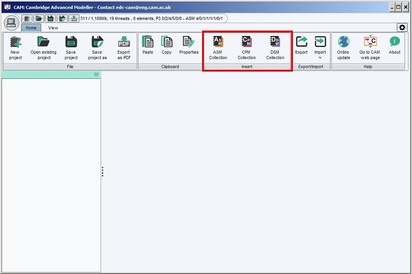
To create a new collection: on the main workspace, select the required collection icon located on the ‘Insert’ band in ‘Home’ tab.
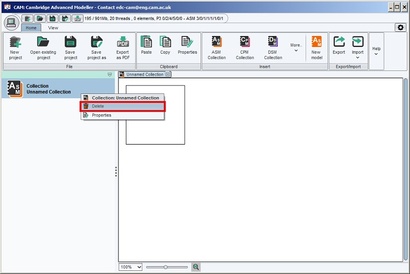
To rename or delete a collection: on the main workspace window, right-click the collection entry on the left pane to obtain a pop-up menu allowing the properties to be edited, or the collection to be deleted.
Models
Each collection is decomposed into one or more models. This allows decomposing a model into multiple sheets, as a way to manage larger models. Where necessary, nodes can be connected across different models using the hyperlink tool (located towards the left-hand side of the bottom toolbar when viewing the worksheet). The division of a model is transparent to simulation algorithms such as that provided by the ASM toolbox.
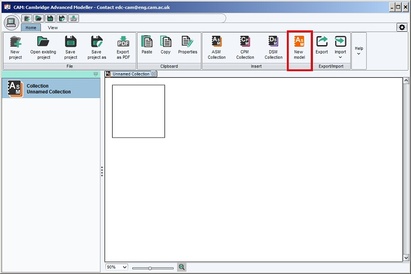
To create a new model in a given collection: Once a collection is created, a “New model” button is available in the ‘Insert’ band on the ‘Home’ tab. Click on this icon to insert a new model.
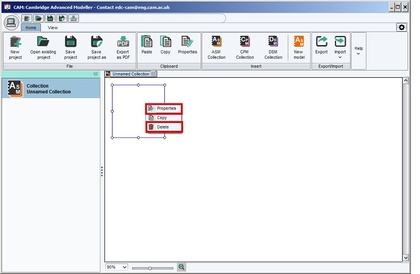
To rename a model: Right-click the model thumbnail on the thumbnail pane in the collections view (or on the model node located in the workspace tree on the left of the screen in a model view). Select ‘Properties' in the pop-up menu.To delete a worksheet: Find the model you wish to delete, then right-click the model thumbnail on the thumbnail pane in the collections view (or on the model node located in the workspace tree on the left of the screen in a model view). This gives an option to delete that worksheet.
Navigating models, collections and the workspace
To open a new window to view the workspace, select ‘New tab’ in the ‘Window’ band on the ‘View’ tab. A collection can then be opened to view its constituent models by selecting the corresponding collection on left pane. While looking at the model thumbnails, double-click a model to edit its content.
You can also double-click nodes in the workspace tree on the left pane in model view, to open that node in the current tab.