
Models
Models
Each collection is decomposed into one or more models. This allows decomposing a model into multiple sheets, as a way to manage larger models. Where necessary, nodes can be connected across different models using the hyperlink tool (located towards the left-hand side of the bottom toolbar when viewing the worksheet). The division of a model is transparent to simulation algorithms such as that provided by the ASM toolbox.
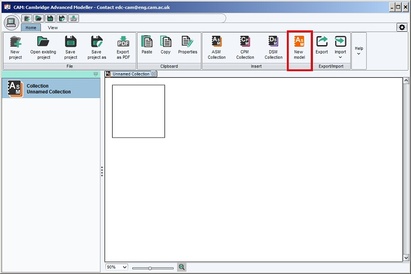
To create a new model in a given collection: Once a collection is created, a “New model” button is available in the ‘Insert’ band on the ‘Home’ tab. Click on this icon to insert a new model.
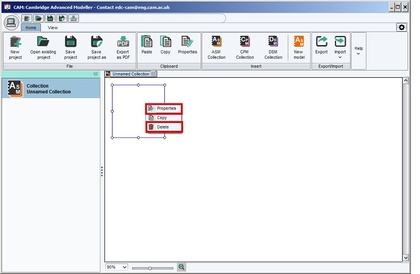
To rename a model: Right-click the model thumbnail on the thumbnail pane in the collections view (or on the model node located in the workspace tree on the left of the screen in a model view). Select ‘Properties' in the pop-up menu.To delete a worksheet: Find the model you wish to delete, then right-click the model thumbnail on the thumbnail pane in the collections view (or on the model node located in the workspace tree on the left of the screen in a model view). This gives an option to delete that worksheet.
Navigating models, collections and the workspace
To open a new window to view the workspace, select ‘New tab’ in the ‘Window’ band on the ‘View’ tab. A collection can then be opened to view its constituent models by selecting the corresponding collection on left pane. While looking at the model thumbnails, double-click a model to edit its content.
You can also double-click nodes in the workspace tree on the left pane in model view, to open that node in the current tab.